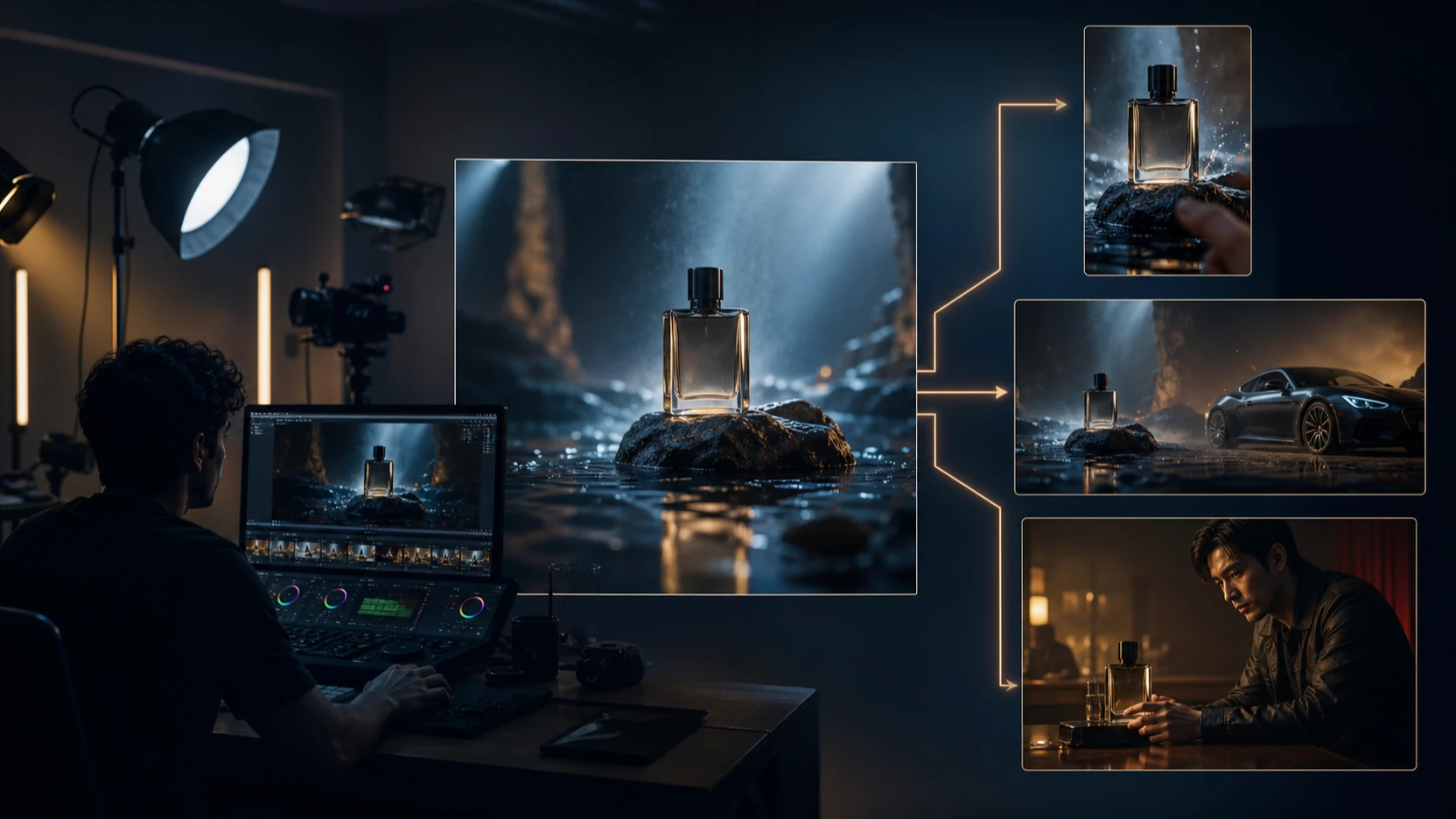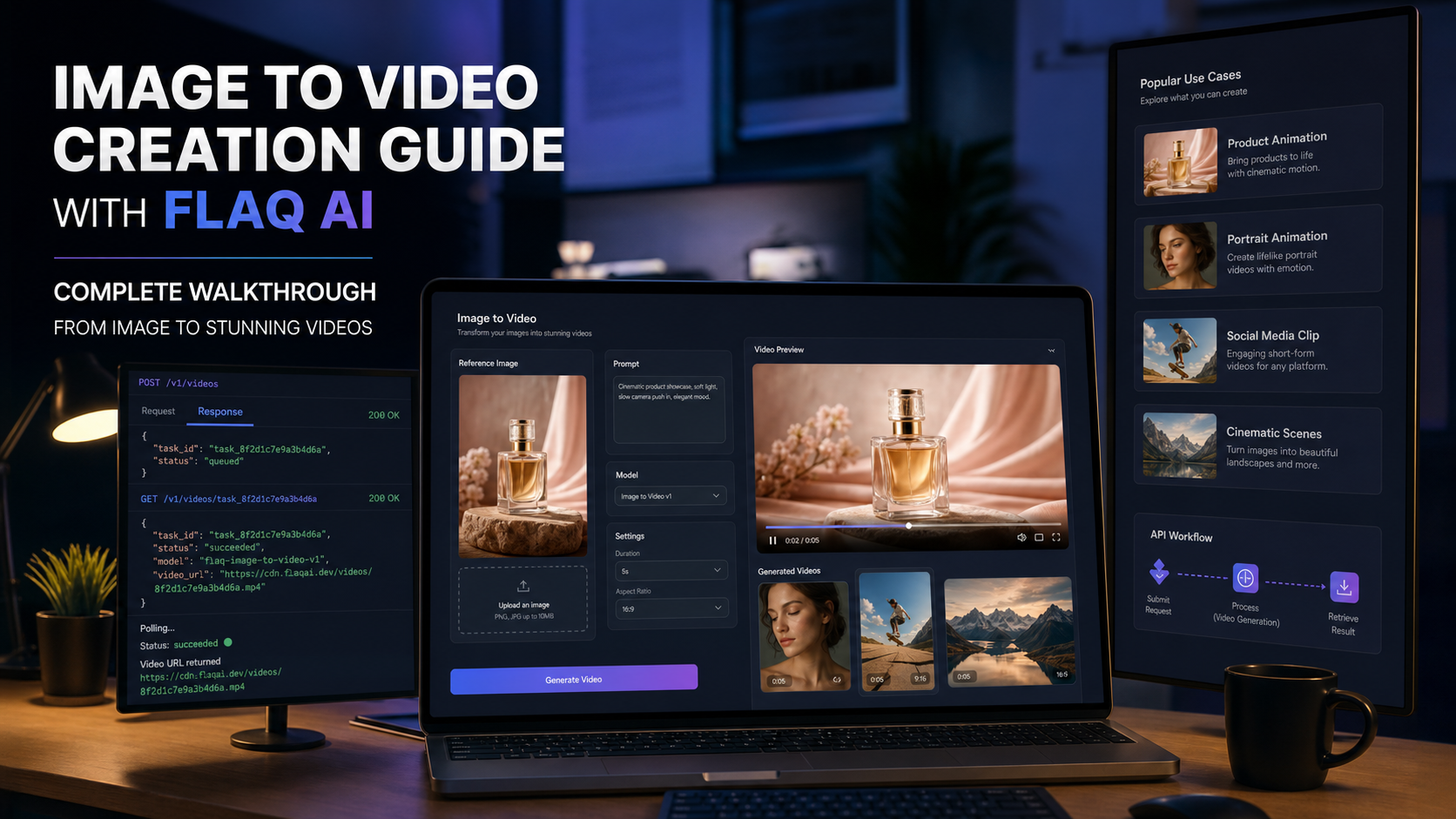
If you want to generate images quickly without creating yet another account, Raphael AI is one of the easiest places to start. You can open the site, type a prompt, and get images in seconds.
That said, “free” can mean different things depending on the plan and the page you’re using—so this guide will show you the smooth no-signup workflow, plus a simple way to produce more images (and more variations) using a better alternative: Free AI Image Generator on Freeimgen.com.
1) What Raphael AI is (and what “no signup” really means)
Raphael AI is a browser-based text-to-image generator. The core appeal is low friction: you can usually start generating without creating an account.
However, it’s smart to set expectations:
- Some “free” plans can include daily limits, slower generations, or watermarks.
- Some features (especially editing tools) may require sign-in.
So if your goal is quick, free text-to-image, you’ll be fine. If your goal is high-volume generation, you may want a backup pipeline like Freeimgen.
2) Quick reality check: free usage vs credits/watermarks
Before you spend time perfecting prompts, take 30 seconds to check what the free tier allows.
Typical things that may vary by tool and plan:
- How many images you can generate per day
- Whether “fast mode” is limited
- Whether downloads have a watermark
- Whether higher-resolution exports require a paid tier
If you want a workflow that’s built specifically for unlimited, no-signup generation, start with Free AI Image Generator instead and use Raphael for quick experiments.
3) Step-by-step: generate your first image on Raphael (no signup)
Here’s the simplest “first success” flow.
Step 1: Open the generator
Go to Raphael AI’s main image generation page (the text-to-image tool). You should see a prompt box and basic settings.
Step 2: Choose the right aspect ratio
Pick a format based on where the image will live:
- 1:1 — profile posts, marketplaces, square thumbnails
- 4:5 — Instagram feed posts, product lifestyle shots
- 9:16 — stories, reels covers, TikTok-style posters
- 16:9 — banners, blog headers, YouTube thumbnails
If you’re doing content marketing, you’ll often want 16:9 headers. For UGC-style thumbnails, 9:16 usually looks more native.
Step 3: Use the 5-part prompt formula
When people say “prompting is hard,” it’s usually because their prompt is missing structure. Use this:
Subject + Setting + Lighting + Style/Camera + Mood/Details
Example (copy/paste):
- A minimalist ceramic coffee cup on a walnut table, morning window light, photorealistic, 50mm lens, warm cozy mood, shallow depth of field, no text, no logo.
Step 4: Generate 4–8 variations
Don’t stop at one. The fastest way to get a great result is to generate a small batch and choose the best.
Step 5: Refine with one change at a time
Pick one “best” image, then iterate gently:
- Make the background simpler
- Change lighting (softbox → sunlight)
- Change style (photoreal → cinematic)
- Tighten composition (close-up, centered product, negative space)
4) Prompting tips that instantly improve your results
Add “camera language” for realism
Try adding:
- 35mm for a wider, documentary feel
- 50mm for natural product shots
- 85mm for portraits and premium lifestyle looks
Use constraints in plain English
These simple constraints reduce unusable results:
- “no text”
- “no watermark”
- “no logo”
- “no extra fingers”
- “clean background”
Not every model respects every constraint perfectly, but it’s still worth doing.
Avoid tiny typography
If you need a poster with readable text, you’ll usually get better results by generating the image first and adding text later in Canva or Photoshop.
5) Ready-to-use prompt packs (copy/paste)
Below are quick prompts you can use immediately. Change only the product/subject words.
A) Product hero image (clean e-commerce)
A [product] on a pure white background, studio softbox lighting, photorealistic, crisp shadow, high detail, centered composition, no text, no logo.
B) Lifestyle product shot (premium feel)
A [product] in a modern kitchen, natural window light, photorealistic, 50mm lens, warm neutral color palette, subtle depth of field, no text, no logo.
C) UGC-style thumbnail (creator-native)
A candid phone photo of a person holding a [product] in a bedroom, slightly messy background, handheld framing, natural imperfect lighting, authentic social media vibe, no text, no logo.
D) Character concept art (fantasy)
A [character description], detailed outfit materials, dramatic rim lighting, cinematic concept art style, dynamic pose, ultra-detailed, no text.
E) Blog header (wide composition)
A wide 16:9 scene of [topic], clean composition with negative space on the right for a headline, soft lighting, modern editorial photo style, no text.
If you want to generate many versions of these quickly, Freeimgen’s free text-to-image generator is a smoother “batch creation” option.
6) How to deal with limits, speed, and quality
If Raphael slows down, adds watermarks, or hits a daily limit, don’t get stuck.
A practical workflow is:
- Use Raphael for early exploration (finding the look)
- Switch to Free AI Image Generator when you want volume
This way you’re never blocked when you’re in “iteration mode.”
7) Optional: editing your images (when you may need login)
Editing tools—like removing objects, changing backgrounds, or extending an image—often cost more compute and may require sign-in depending on the tool.
If you hit a wall with editor access, you can still:
- Regenerate with tighter prompts (often faster than editing)
- Use another free generator to produce a cleaner base image
- Do quick edits in common tools (Canva/Photoshop) for text, cropping, and minor fixes
8) Common problems and quick fixes
“It looks too AI.”
Fixes:
- Add candid context (“handheld phone photo,” “messy room,” “natural light”)
- Add micro-specific details (“after the gym,” “on a cluttered desk”)
- Reduce cinematic words if you want realism
“Hands are weird.”
Fixes:
- Avoid prompts that require complex finger poses
- Use “hands partially visible” or “hands off-frame”
- Generate more variations and pick the best
“It added text or symbols.”
Fixes:
- Add “no text, no watermark, no logo”
- Remove “poster,” “label,” “packaging typography” keywords
“Style drifts between generations.”
Fixes:
- Reuse the exact same style line
- Keep composition and lighting consistent
9) Licensing & privacy: what to check before commercial use
If you’re using images for business (ads, product pages, thumbnails), always confirm:
- Whether your plan allows commercial use
- Whether the tool stores your prompts/images
- Whether images are watermarked on free downloads
Also note that “Raphael AI” branding exists across multiple sites—so double-check you’re using the domain you trust.
10) A better alternative for no-signup, high-volume generation
If your main priority is “free + no signup + lots of images,” Freeimgen is a strong option.
Use these links depending on what you want to do:
- Homepage (all tools): Free AI Image Generator
- Direct tool page: Free Text to Image Generator
A simple combo workflow:
- Draft your best prompt style on Raphael
- Produce bulk variations on Freeimgen
- Choose winners and add text overlays in your design tool
Conclusion: your fastest 10-minute starter plan
If you want a quick “do this now” checklist:
- Open Raphael and generate 6–8 images with the 5-part prompt formula
- Pick the best one and refine only one thing (lighting or background)
- If you need more volume, switch to Freeimgen and batch-generate variations
- Add text overlays later (don’t rely on AI for perfect typography)
That’s it. You don’t need perfect prompts—you need a repeatable process.
If you tell me your goal (product image, thumbnail, character, blog header), I can write 15 niche-specific prompts in your preferred style.