Most people only think about image formats when something goes wrong.
A file will not upload. A website feels slow. A design tool opens one format but not another. A marketplace accepts JPG but not WebP. Or a perfectly fine image suddenly becomes inconvenient just because it is in the wrong format for the next step.
That is exactly why simple image converters still matter.
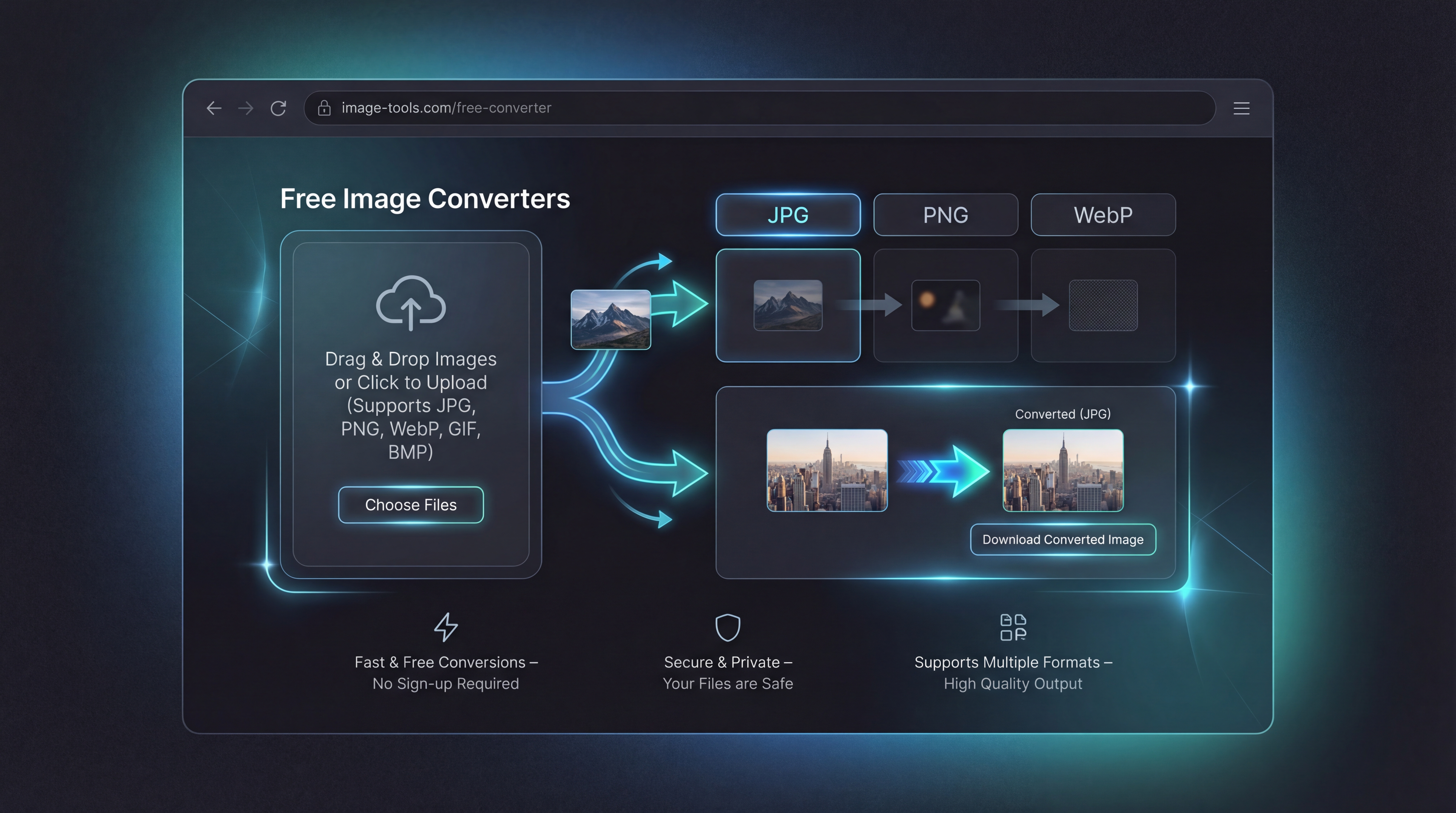
On FreeImgen AI, the image converter tools are built around a practical idea: you should be able to change formats quickly, in your browser, without extra setup. Whether you need a WebP to JPG converter for compatibility, a JPG to WebP converter for lighter website images, or a PNG to JPG converter for easier sharing, the goal is the same: get the image into the format that actually fits the job.
Why image format conversion still matters
Different image formats solve different problems.
JPG is still one of the most common options for everyday web use, social uploads, and broad compatibility. PNG is often preferred in editing workflows and design pipelines because it is widely supported and useful in situations where image clarity matters. WebP is attractive because it is designed for more efficient web delivery and smaller file sizes in many cases.
The issue is that your source format and your target format are often not the same.
You might download a WebP image from a website, then realize your editing app or upload flow works better with JPG or PNG. You might generate or export a PNG and then want a smaller, more web-friendly version. Or you may have a folder full of JPGs that would load faster online if converted into WebP.
That is where FreeImgen’s browser-based converters fit in: they are small utility tools, but they solve a very real last-mile problem.
The six core image converter tools
FreeImgen’s format converter lineup covers the most common everyday conversions:
- WebP to JPG converter
- PNG to WebP converter
- JPG to WebP converter
- WebP to PNG converter
- PNG to JPG converter
- JPG to PNG converter
This is a useful set because it covers the most common movement between standard web formats. Instead of treating format conversion as a technical chore, you can think of it as a workflow adjustment: keep the image content, change the file type to match the destination.
When to use each converter
The easiest way to choose the right tool is to ask one question: what do you need the image to do next?
Use WebP to JPG for compatibility
A WebP to JPG converter is useful when you need the widest possible compatibility. If an image came from a website in WebP format but you want to upload it elsewhere, drop it into a document, or open it in a tool that prefers JPG, this is usually the simplest fix.
Use JPG to WebP for lighter websites
A JPG to WebP converter makes sense when your goal is web delivery. If you already have JPG images but want a more efficient format for site speed or smaller web assets, converting them to WebP can be a practical next step.
Use PNG to WebP for heavier graphic files
A PNG to WebP converter is helpful when you have large PNG files that feel too heavy for web use. This is especially common with exported graphics, UI elements, and saved design assets that started as PNG but now need to be published more efficiently.
Use WebP to PNG for editing workflows
A WebP to PNG converter is often useful when you want to bring a web image into a more design-friendly workflow. If you downloaded an image in WebP but want to continue working with it in editing software, PNG may feel like the more comfortable handoff format.
Use PNG to JPG for smaller, simpler sharing
A PNG to JPG converter is a practical choice when you want a lighter file for casual distribution, social posting, or general uploads. PNG files can be larger than necessary for many everyday uses, so converting to JPG is often the cleaner option when small file size matters more than keeping the original format.
Use JPG to PNG for design handoff
A JPG to PNG converter can be useful when your next step is editing, graphic layout work, or handing assets to someone who prefers PNG inside their workflow. It will not magically create missing detail, but it can make the file easier to manage in a PNG-centered process.
Which format should you choose?
If you want a quick rule of thumb, use this:
- Choose JPG to WebP or PNG to WebP when your goal is web publishing.
- Choose WebP to JPG when compatibility matters most.
- Choose WebP to PNG or JPG to PNG when your next step is editing or design handoff.
- Choose PNG to JPG when you want lighter everyday distribution.
This way of thinking keeps the decision simple. You are not picking the “best” format in the abstract. You are picking the best format for the next task.
How to convert an image in three steps
One reason these tools are easy to recommend is that the workflow is simple.
First, open the converter page that matches your need.
Second, upload the image.
Third, download the converted result.
That is it.
FreeImgen presents these tools as browser-powered, no-signup utilities with local/privacy-friendly messaging, which makes them a convenient option when you want to solve one file problem quickly instead of learning a larger editing tool.
Who these converters are most useful for
These tools are more broadly useful than they may look at first.
Bloggers and site owners can use JPG to WebP and PNG to WebP to prepare faster-loading images.
Designers can use WebP to PNG and JPG to PNG when downloaded assets need to move into design software.
Sellers and marketers can use PNG to JPG to make product visuals easier to upload across marketplaces and social channels.
And everyday users can use WebP to JPG when a saved image simply will not open or upload where they need it.
A quick quality and workflow checklist
After converting an image, it is worth checking a few simple things:
- Does the image still look sharp enough?
- Is the file size better suited to where you are sending it?
- Did you choose the right format for the next app, website, or editor?
- If you expected transparency or a certain workflow behavior, does the converted file still fit that need?
Format conversion is not complicated, but a quick check saves time later.
Other FreeImgen tools worth pairing with the converters
Format conversion is usually not the first step in an image workflow. It is often one of the last.
That is why these tools pair well with other utilities on FreeImgen.
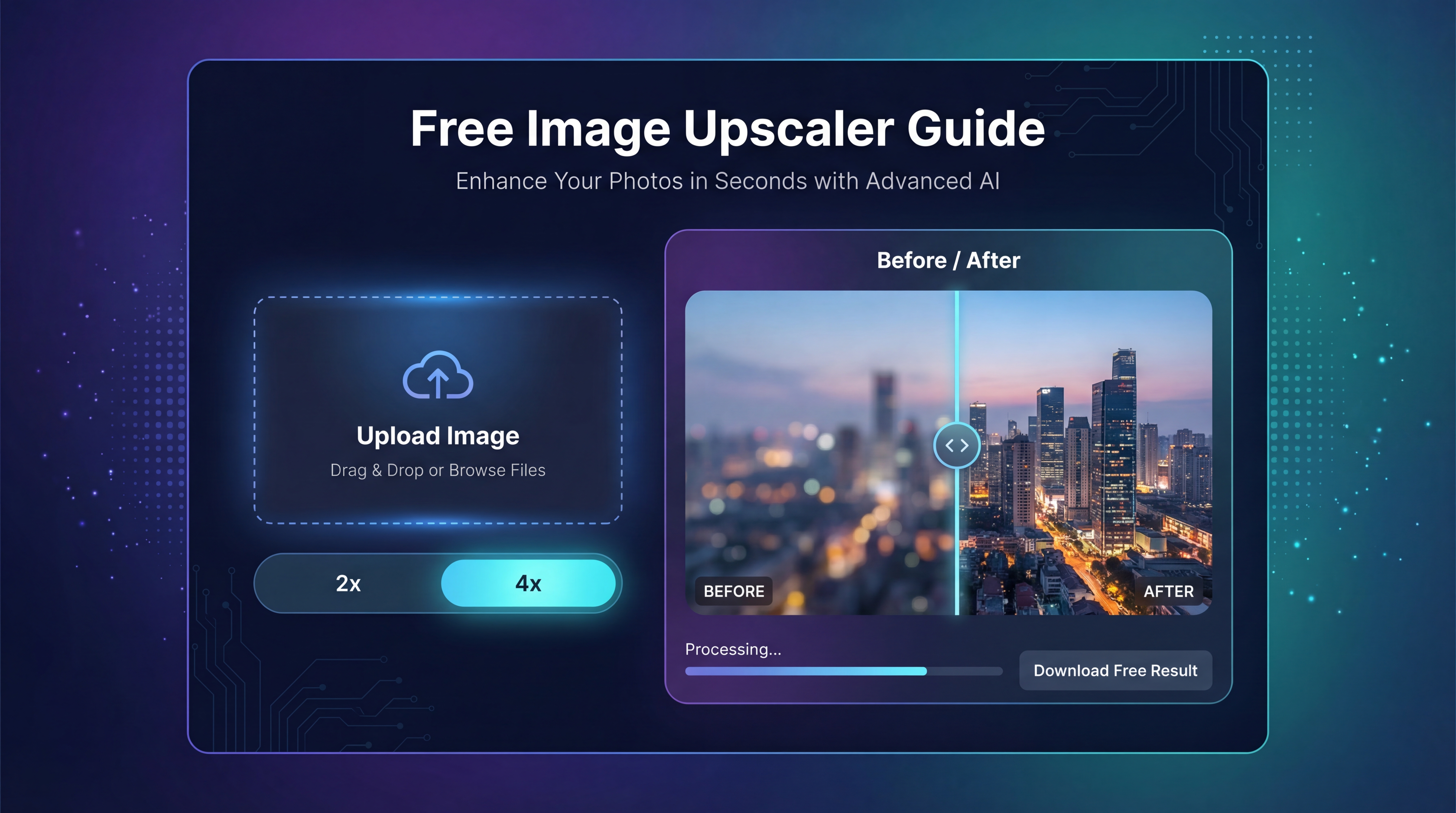
Use Free Image Upscaler when you want to enlarge or sharpen an image before exporting it into the final format.
Use Free Image-to-Image AI when you want to restyle or refine a visual before converting it.
Use Flux AI Image Generator when you want to create fresh images first and then export them in the format you actually need.
Use Janus Pro Image Generator when you want another prompt-based image creation option before finishing the workflow with conversion.
And if you want to browse the broader tool ecosystem, FreeImgen AI works as the central hub.
Final takeaway
Image converters are not flashy tools, but they solve one of the most common problems in digital workflows: getting a perfectly usable image into the wrong format at the wrong time.
That is why FreeImgen’s converter pages are practical. They cover the most common format changes people actually need, from WebP to JPG and JPG to WebP to PNG to JPG and JPG to PNG.
A simple workflow makes the whole ecosystem easier to understand: create or refine the image, upscale it if needed, then convert it into the format that fits the final destination.