If you’ve ever had an image that was almost right—great composition, but the lighting feels flat, the background is distracting, or the style doesn’t match your brand—image-to-image AI is the shortcut you’ve been looking for.
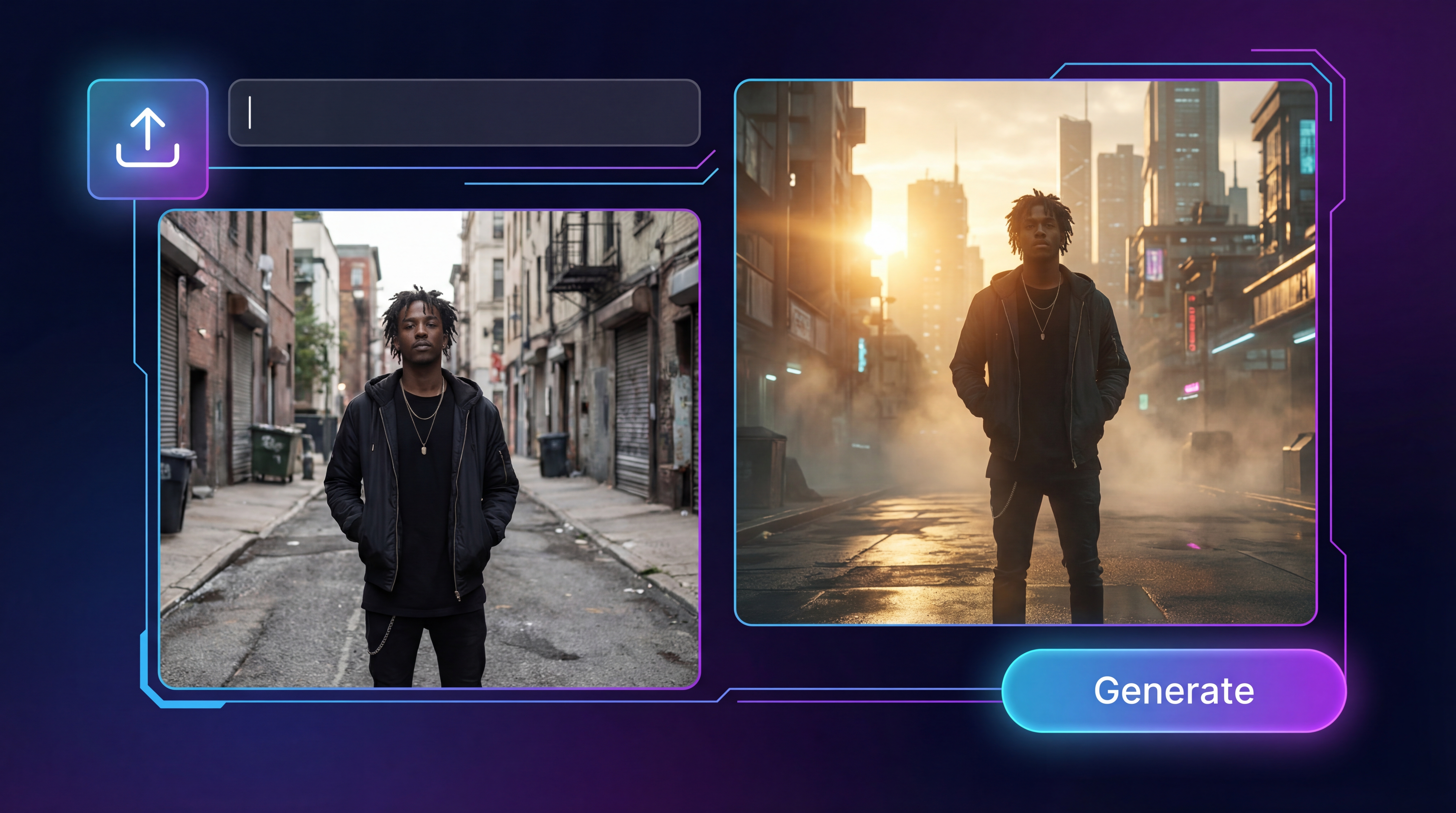
Instead of starting from scratch, you upload a photo you already like, describe the changes you want, and let an AI image generator from image create new versions that keep the essence of the original.
In this guide, you’ll learn what image-to-image AI is, what it’s best for, and how to get strong results using FreeImgen’s free image-to-image AI.
What “Image-to-Image AI” Actually Means (In Plain English)
An image-to-image AI tool takes an existing image as the “base.” Then it uses your text instructions to generate a new image that follows your direction.
Think of it as:
- Your image = the blueprint (pose, layout, subject, overall structure)
- Your prompt = the renovation plan (style, lighting, background, mood, details)
That’s why an AI image-to-image generator (free) is so useful for quick iteration. You’re not reinventing the wheel—you’re upgrading what you already have.
Why People Love Using an AI Image-to-Image Generator
Text-to-image is great when you don’t have anything yet. But the moment you want consistency—same subject, same framing, same product angle—image-to-image becomes the more practical option.
Here are the most common reasons people use an ai image to image generator free workflow:
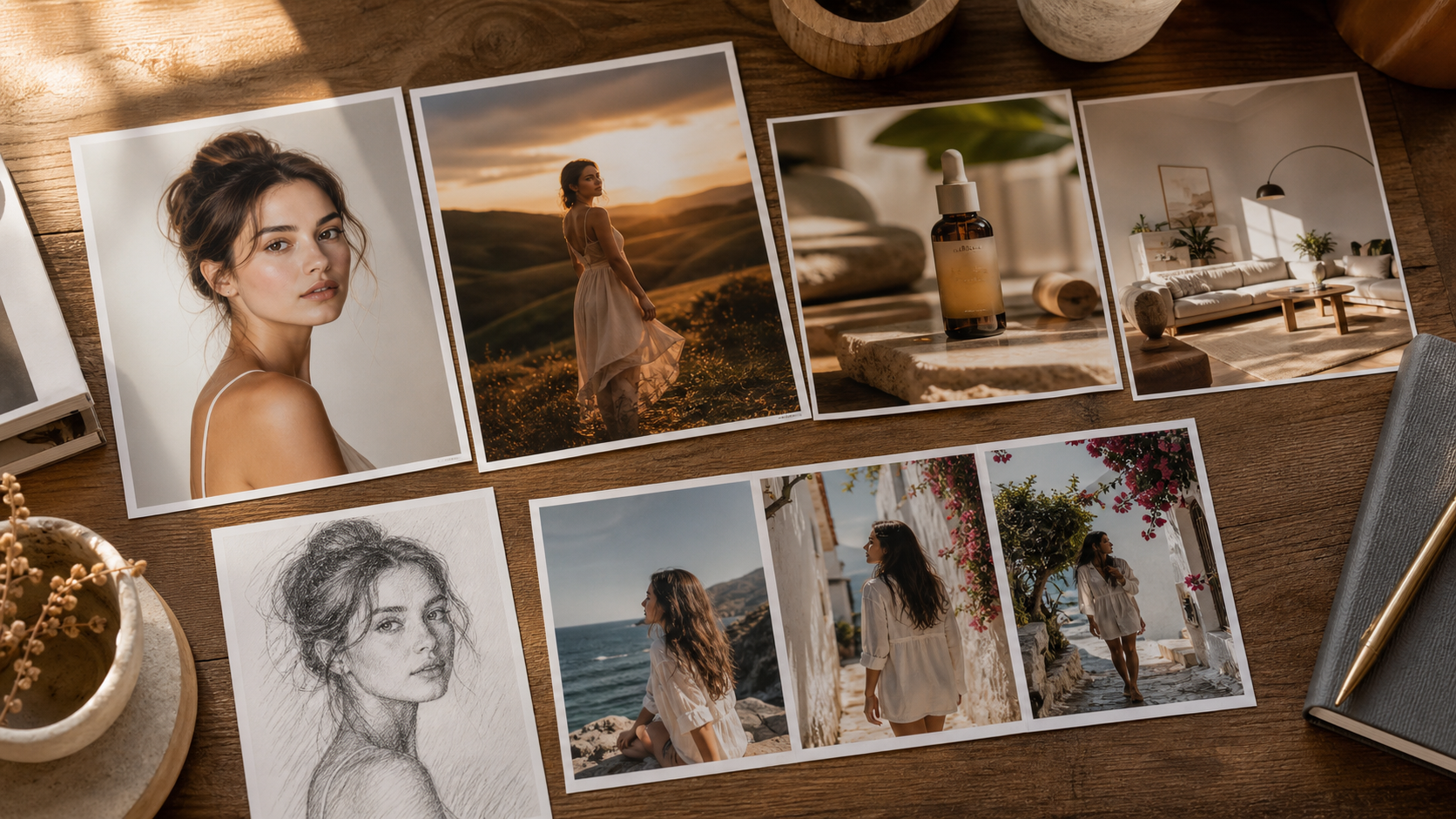
- Keep the composition, change the look. Make a photo cinematic, dreamy, minimalist, or painterly.
- Clean up visuals quickly. Improve lighting, remove distractions, simplify backgrounds.
- Create multiple variations fast. Perfect for A/B testing thumbnails, ads, and social posts.
- Build style consistency. Helpful when you want a cohesive “brand feel” across images.
Introducing FreeImgen’s Free Image-to-Image AI
FreeImgen offers a straightforward tool for turning one image into many. With FreeImgen’s free image-to-image AI generator, you can:
- Upload an image (common formats like JPG/PNG/WebP)
- Write a prompt describing your intended changes
- Generate new outputs quickly
- Iterate easily until you get the version you want
If you want a simple way to experiment with an AI image generator from image without jumping through hoops, this tool is built for exactly that.
How the Image-to-Image Workflow Works (So You Know What to Expect)
Most successful image-to-image generations come down to one concept:
Describe the delta: what changes, and what stays the same.
When you use a free image-to-image AI tool, you’re essentially giving the model two instructions:
- “Use this image as the base.”
- “Transform it in this specific way.”
If you’re not explicit about what should remain unchanged, the output can drift. If you’re clear, you’ll get results that feel like intentional variations—not random reimaginations.
Step-by-Step: How to Use FreeImgen’s Image-to-Image AI
Here’s a simple flow you can follow every time you want strong results from an AI image-to-image generator (free).
1) Open the tool and upload an image
Start at FreeImgen’s free image-to-image AI and upload your base image.
A quick tip: choose a sharp, well-lit image when possible. You can still enhance weaker images, but clean input usually creates cleaner output.
2) Write a clear “keep vs change” prompt
Before you hit generate, decide:
- What must stay the same? (subject identity, pose, outfit, product shape)
- What should change? (style, lighting, background, mood, textures)
3) Generate multiple variations
Treat it like sampling. Even great prompts can produce slightly different results across runs.
4) Refine your prompt and regenerate
If the subject changes too much, add stronger “keep” constraints. If the image looks messy, simplify your prompt.
5) Save your best prompt as a reusable preset
Once you find a prompt that works for your style, reuse it. Most creators build a little library of “go-to” prompt recipes.
A Prompting Playbook That Gets Better Results
A strong prompt for an AI image generator from image is usually simple, specific, and not overloaded.
Here’s a reliable template you can copy:
Prompt template:
- Keep: same subject, same face, same pose, same framing
- Change: (style / background / lighting / mood)
- Quality notes: realistic detail, natural textures, sharp focus
- Avoid: no extra limbs, no text, no watermark, no logos
Mini prompt recipes you can try
Product photo cleanup
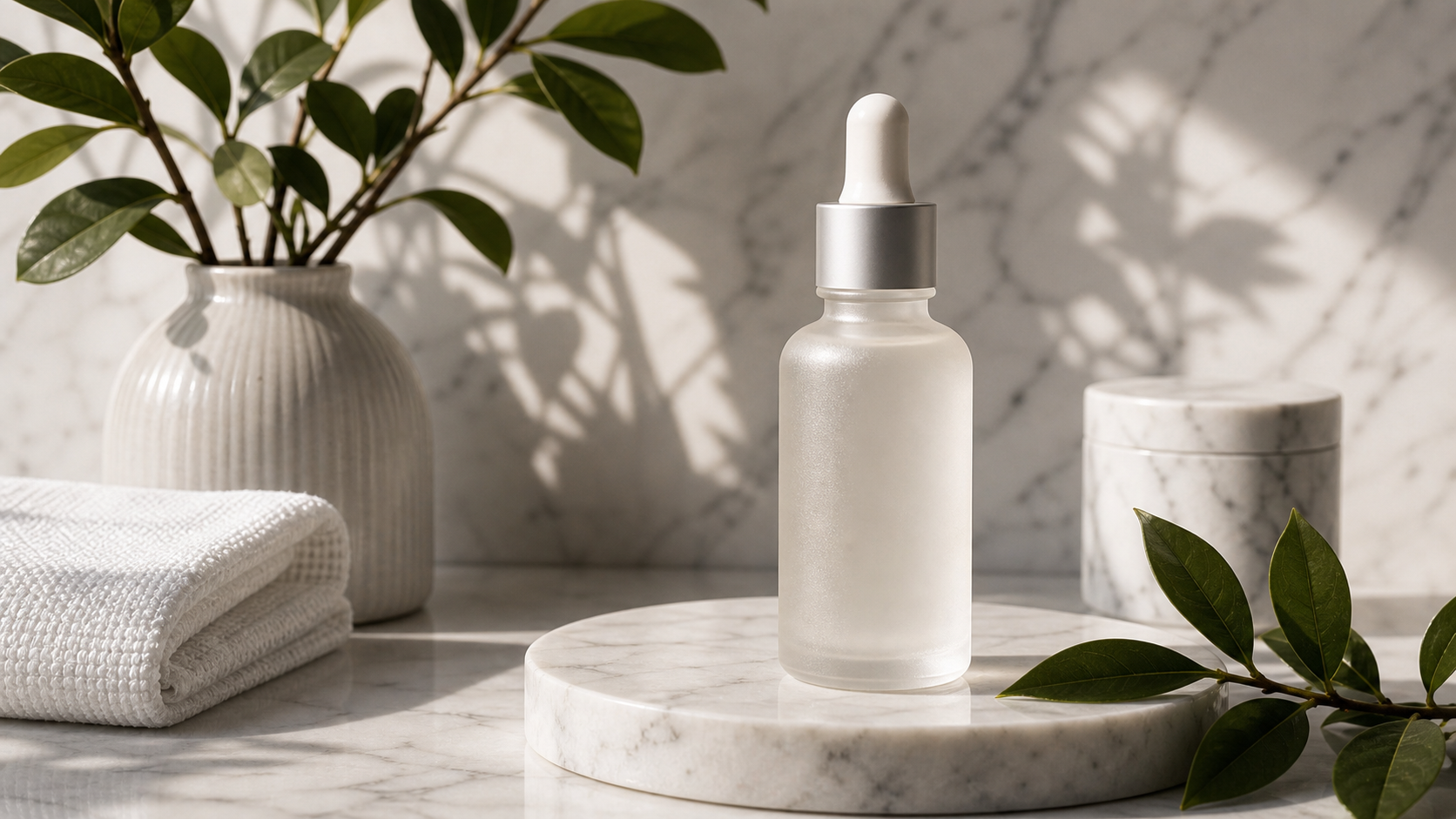
- “Keep the product identical and centered. Replace background with clean white studio backdrop. Softbox lighting, sharp detail, no text, no logo.”
Cinematic mood upgrade
- “Keep the same subject and pose. Cinematic lighting, soft shadows, shallow depth of field, film still look, natural skin texture.”
Illustration style conversion
- “Keep the same composition and character design. Convert to detailed fantasy illustration, painterly brush texture, warm color palette, clean edges.”
Background swap without changing the person
- “Keep the same person, face, hairstyle, outfit, and pose. Replace background with a cozy café interior, warm lighting, realistic perspective.”
Best Use Cases for Image-to-Image AI (Where It Really Shines)
E-commerce and product listings
If you sell anything online, an ai image to image generator free workflow is great for:
- Cleaner backgrounds
- Consistent lighting
- Seasonal styling without reshoots
- Multiple hero-image options for testing
Social content and thumbnails
You can keep one strong base photo and quickly generate:
- A “brighter” version
- A more dramatic version
- A cleaner, minimalist version
- A themed or seasonal version
Design exploration
Image-to-image is basically rapid prototyping. You can explore styles and moods without rebuilding the whole scene.
Storytelling and character concepts
For concept art, it helps you maintain a consistent silhouette or face while experimenting with costumes, environments, and visual tone.
Troubleshooting: Quick Fixes When Results Look Off
If your output doesn’t match what you imagined, here are the most common issues and the fastest fixes.
“It doesn’t look like the original anymore.”
Add stronger constraints:
- “Same face, same identity, same hairstyle, same outfit, same pose, same framing.”
“It added weird artifacts or extra body parts.”
Add negative constraints:
- “No extra limbs, no distortion, no duplicate faces, no text.”
“The image is muddy or too soft.”
Keep the prompt simpler and add clarity notes:
- “Sharp focus, high detail, clean edges, natural texture.”
“The style is inconsistent between generations.”
Use fewer style words, and pick one strong style direction rather than mixing multiple aesthetics.
Build a Complete Workflow With Other FreeImgen Tools
Image-to-image works even better when you combine it with a few supporting tools.
Start from scratch when you need a brand-new concept
If you don’t have a base image yet, begin with FreeImgen’s free text-to-image generator.
Explore different model options for new looks
If you want alternative aesthetics or outputs, you can also try:
- Flux AI image generator for another creative direction
- Seedream 4.0 AI image generator if you want variety in styles
- Gemini 2.5 Flash image AI for edit-like workflows
- Janus Pro image generator as another generation route
Upscale your best results
Once you pick your favorites, improve clarity and resolution using the free image upscaler.
Convert and optimize images for web use
If you want faster loading and cleaner file formats, use:
FAQs: Using a Free AI Image-to-Image Generator
Will it keep faces consistent?
It can, especially when your prompt clearly says what to keep. If identity drift happens, strengthen the “keep” part and avoid mixing multiple style directions.
What images work best?
Clear subject, good lighting, less clutter. You can still transform busy images, but clean inputs tend to produce cleaner outputs.
How many iterations should I run?
Think in small batches. Generate a few variations, pick the best direction, then refine your prompt and run a few more.
What should I avoid?
Avoid prompts that contradict themselves (“realistic anime photo,” “minimalist ultra-detailed,” etc.). Also avoid adding unnecessary details that may distract the model from your main goal.
Wrap-Up: What to Try Next
If you want a practical way to remix your existing photos and designs, start with FreeImgen’s free image-to-image AI.
Then, if you want to expand your workflow:
- Create new concepts using the free text-to-image tool
- Try different generation styles with Flux AI or Seedream 4.0
- Clean up and enhance results with the free AI upscaler
- Export optimized files using the PNG → JPG converter
Once you get into the habit of “upload → prompt → iterate,” image-to-image AI becomes less like a novelty and more like a daily creative tool you’ll keep coming back to.